Ot FieldCollect lets your field teams fill in LimeSurvey surveys on Android phones and iPhones without internet. Interviews are kept on the phone and arrive in LimeSurvey as normal responses as soon as the phone is back online.
This guide is for the LimeSurvey administrator who sets it up and runs it. For the people in the field, there is a separate one-page Collector guide you can print or send to them.
1. Before you start
You need:
- LimeSurvey 5, 6 or 7, Community Edition, on your own server.
- HTTPS on your LimeSurvey site (an address starting with
https://). Phones only allow offline apps and location on secure sites. - Phones: Android with Chrome, or iPhone/iPad with Safari on iOS 15.4 or newer.
- A trial key or a licence key (section 8). Without a key, phones cannot connect to a public website.
2. Install and activate
- In LimeSurvey, open Configuration → Plugins → Upload & install.
- Choose the zip file (for example
OtFieldCollect-2.0.0.zip) and click Install. - Find OtFieldCollect in the plugin list and click Activate.
- A new Offline item appears in the top bar. Click it to open the plugin, which has four tabs: Surveys, Phones, Activity and Settings.
- Go to Settings and paste your trial or licence key (section 8).
3. Make a survey available on phones
The survey must be activated in LimeSurvey first (Survey → Activate), as for web collection.
- Open Offline → Surveys and click the survey.
- Tick Available on phones.
- Choose who collects and the other settings described below, then click Save who collects and Save settings.
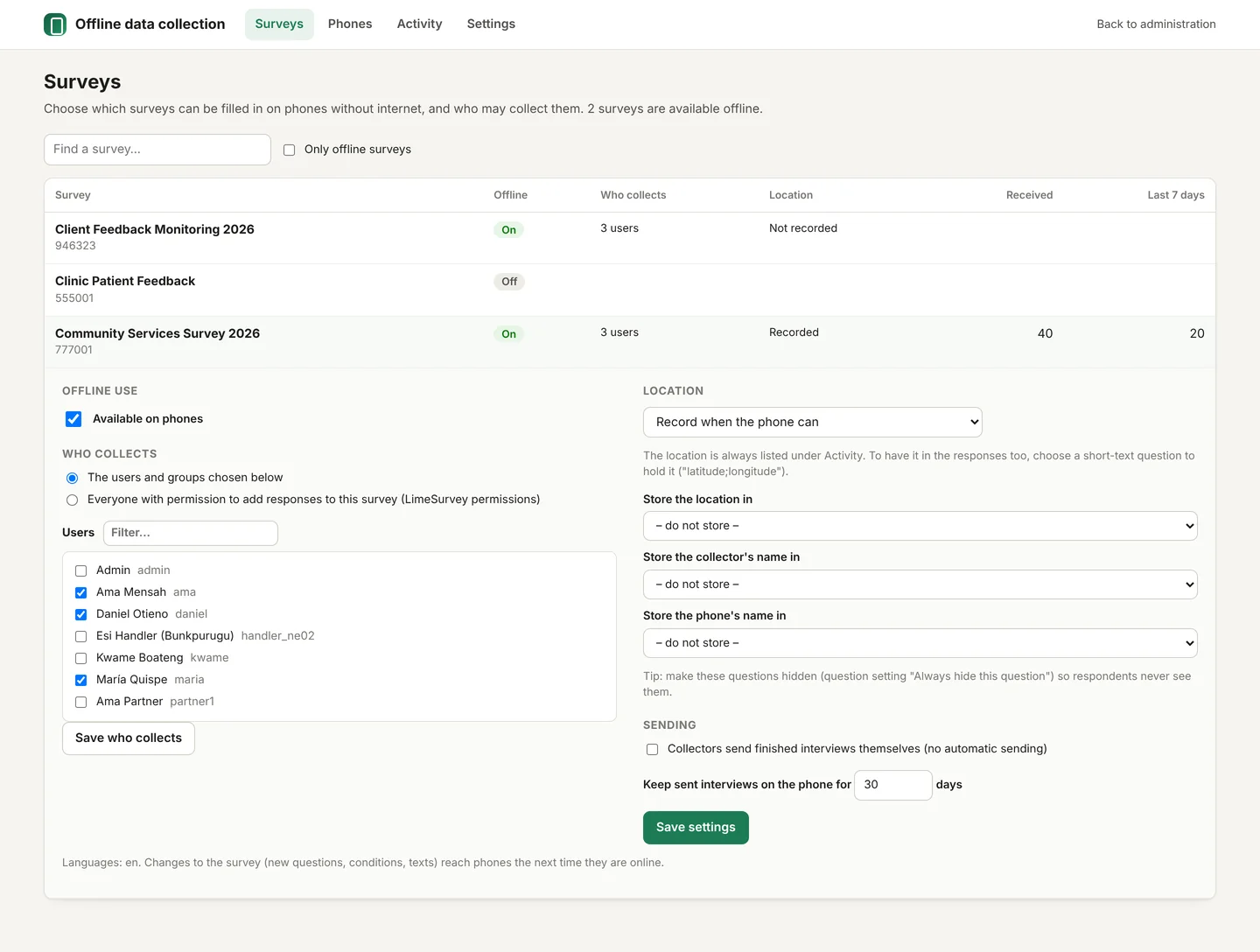
Who collects
| Choice | Who sees the survey on their phone |
|---|---|
| The users and groups chosen below | Only the LimeSurvey users and user groups you tick. Recommended. |
| Everyone with permission to add responses to this survey | Anyone who has that LimeSurvey permission for the survey. |
Each collector needs a LimeSurvey user account. Create one under Configuration → User management. A collector does not need any other LimeSurvey permission.
Location (GPS)
| Setting | What happens |
|---|---|
| Do not record | No location. |
| Record when the phone can | The phone records where the interview was finished, with its accuracy, if location is allowed. |
| Required | An interview cannot be finished until the phone has a location. Use this only when location really matters, because it can block collectors indoors or with weak GPS. |
The location always appears under Activity. To keep it in the responses as well, create a short text question in the survey (for example GPS) and choose it in Store the location in. It is saved as latitude;longitude. In the same way you can store the collector's name and the phone's name in short-text questions.
Tip: set those questions to Always hide this question in LimeSurvey, so respondents and collectors never see them.
Sending
| Setting | What happens |
|---|---|
| Collectors send finished interviews themselves | Not ticked (default): finished interviews are sent automatically whenever the phone has internet. Ticked: they wait until the collector taps Send now. |
| Keep sent interviews on the phone for … days | Sent interviews stay visible on the phone for this many days, so collectors can look back at their work. They are then removed from the phone (they are safe on the server). |
What works on phones
- Question types: single and multiple choice, dropdowns, Yes/No, gender, 5-point choice, lists with comments, all array types (including dual scale, numbers and texts), numbers, multiple numbers, dates, short and long text, multiple short texts, ranking, equations, text displays and file uploads (photos).
- Survey logic: conditions (relevance), array filters, validation, mandatory and soft-mandatory questions, number ranges, "Other" answers and answer piping, using LimeSurvey's own expressions.
- Several survey languages, random answer order and default answers.
Not used on phones: quotas, participant tokens (responses are saved without a token), timers, the self/that expression shortcuts, and question types added by other plugins. If a survey contains a question the phones skip, the survey's settings panel lists it.
Changing a survey during collection: phones get the new version the next time they are online. Interviews already started keep their answers. Anything that no longer fits the survey (for example a removed answer option) is left out and noted under Activity; the rest of the interview is saved.
4. Connect phones
Each collector connects their phone once, with internet. After that the phone works offline.
With a pairing code (recommended)
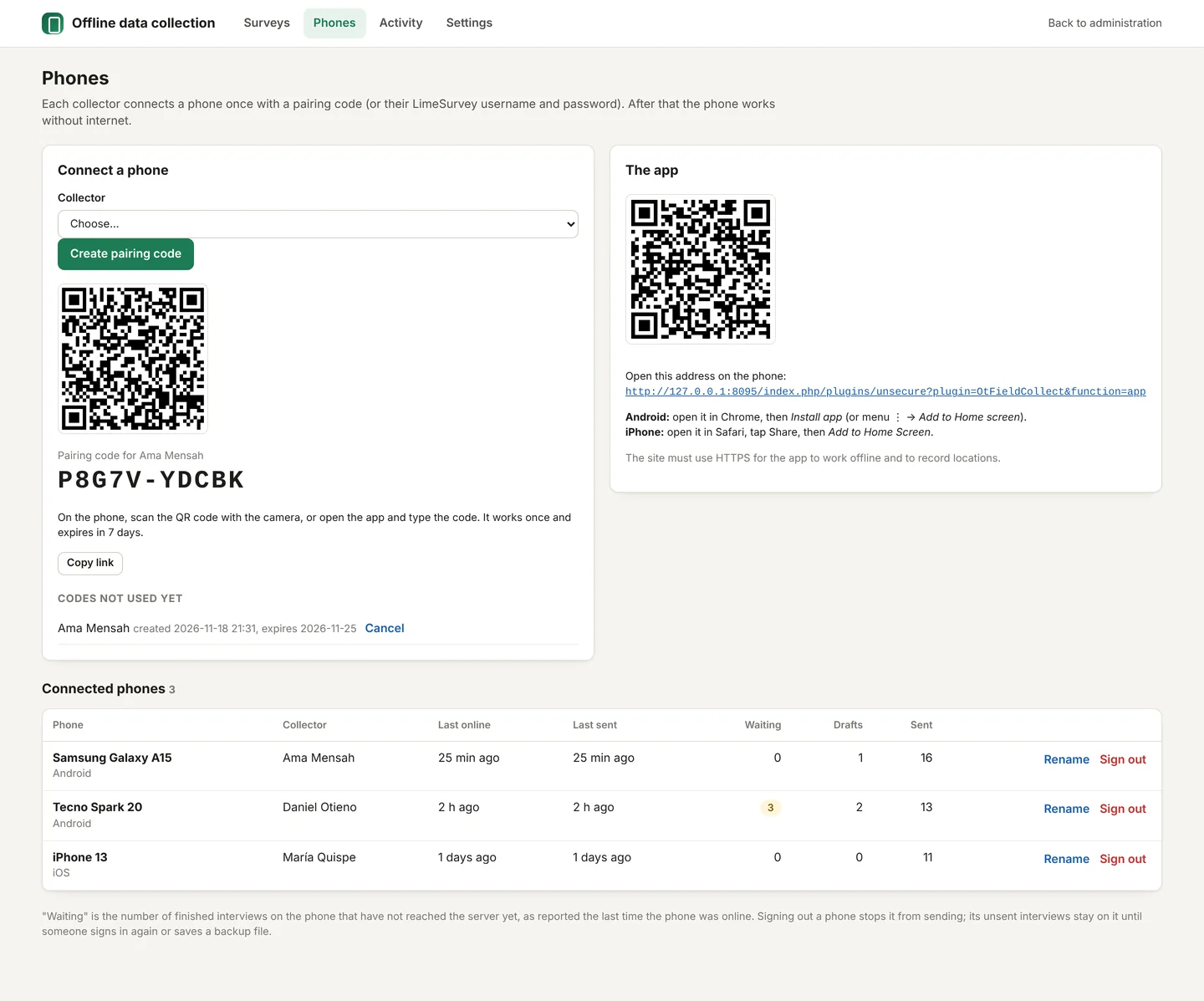
- Open Offline → Phones.
- Under Connect a phone, choose the Collector and click Create pairing code.
- The collector scans the QR code with the phone's camera, or opens the app address and types the code.
- On the phone they check the phone's name and tap Connect.
A pairing code works once and expires after 7 days. Unused codes are listed under Codes not used yet, where you can cancel them. Use Copy link to send the code by message to a collector who is far away.
With a username and password
Collectors can also open the app address, choose Username and sign in with their LimeSurvey username and password. The phone keeps a device key, never the password.
Add the app to the home screen
After connecting, the collector adds the app to the phone's home screen. It then opens like any other app, even without internet:
- Android (Chrome): tap Install app when it appears, or open the menu ⋮ → Add to Home screen.
- iPhone (Safari): tap Share → Add to Home Screen. This step matters on iPhones: it is what makes Safari keep the app's data.
The list of connected phones
| Column | Meaning |
|---|---|
| Last online | The last time the phone contacted the server. |
| Last sent | The last time it sent interviews. |
| Waiting | Finished interviews still on the phone, as reported the last time it was online. Highlighted when above zero. |
| Drafts | Interviews started but not finished. |
| Sent | Interviews received from this phone. |
Rename gives the phone a clearer name. Sign out disconnects it straight away, for example when a phone is lost or changes hands. A signed-out phone cannot send any more. Its unsent interviews stay on it until someone signs in again or saves a backup file.
5. Follow the work: Activity
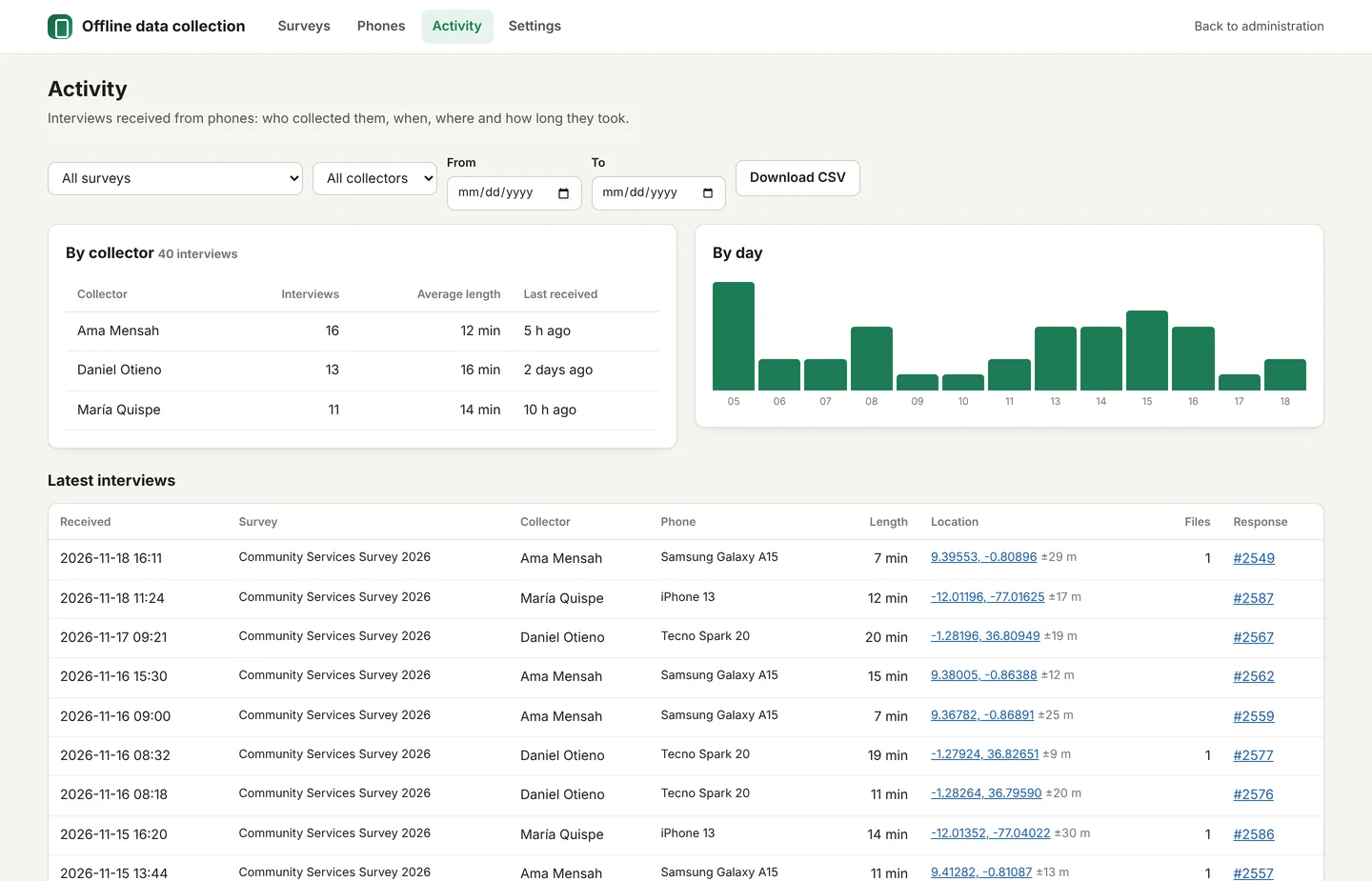
- Filters: survey, collector and dates.
- By collector: number of interviews, average length and when each collector last sent.
- By day: interviews received per day.
- Latest interviews: when it arrived, survey, collector, phone, interview length, location (click to open a map), files attached, and a link to the response in LimeSurvey.
- Download CSV: the list for Excel or your own reports.
The responses themselves are normal LimeSurvey responses: view, export and analyse them under the survey's Responses as usual.
6. When a phone cannot get online: backup files
If a phone will be without internet for a long time, or is going to be replaced, the collector can save its unsent interviews to a file: on the phone, Settings → Save backup file. They send the file to you (by cable, email or messaging app).

At the bottom of Activity, choose the file and click Import. Interviews that were already received are skipped, so importing the same file twice does no harm.
7. The app's name and colour
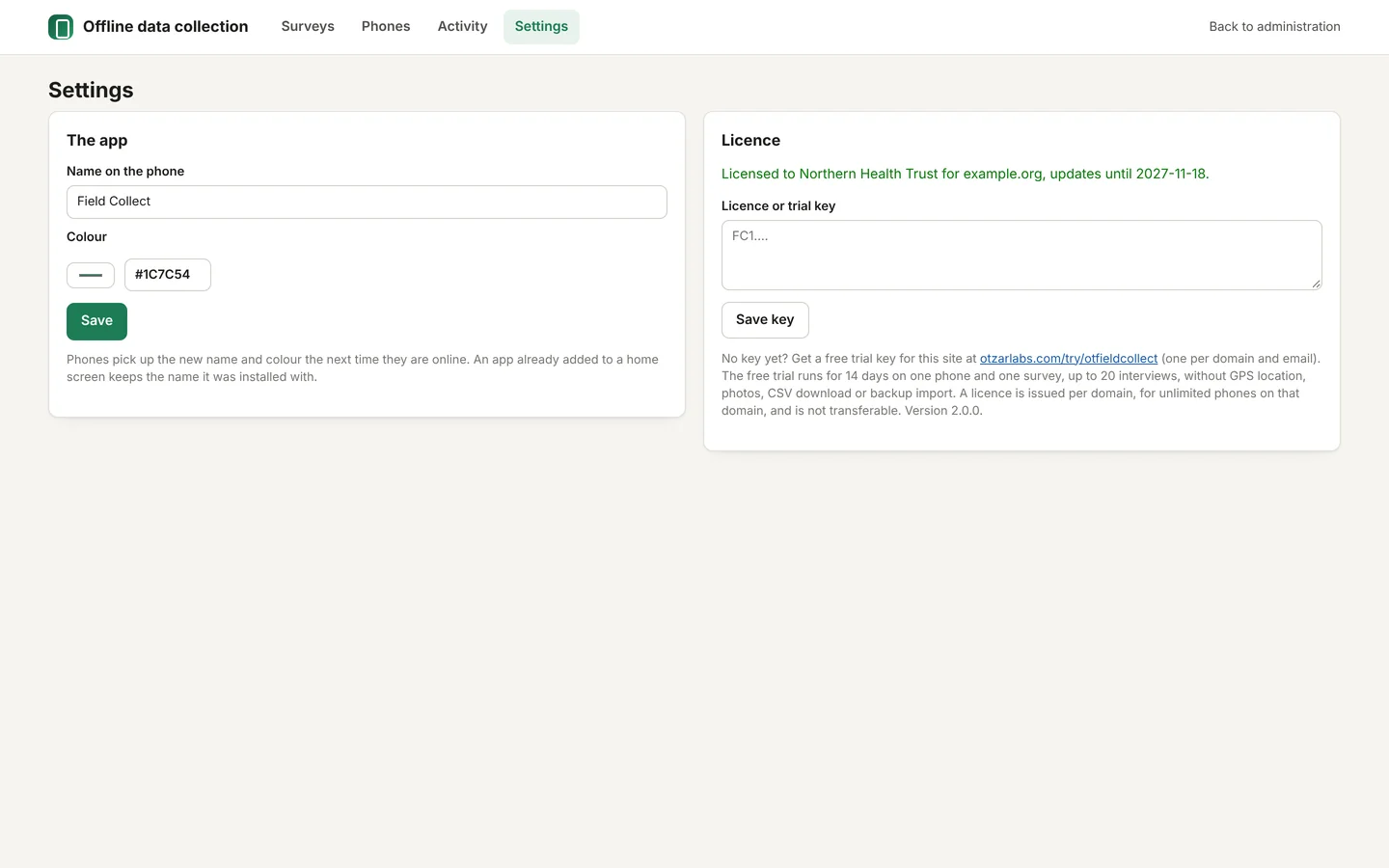
Under Settings → The app you can change the Name on the phone (default Field Collect) and its Colour. Phones pick up the change the next time they are online. An app already added to a home screen keeps the name it was installed with.
8. Trial and licence keys
| Free trial key | Licence key | |
|---|---|---|
| How to get it | Free at otzarlabs.com/try/otfieldcollect: enter your name, email and the address of your LimeSurvey site. The key is emailed to you. | Buy a plan on otzarlabs.com. The key is on screen and emailed after payment, and always in My licences. |
| Lasts | 14 days | One year of updates and support; renewable. |
| Phones | 1 | Unlimited, on the licensed domain |
| Surveys | 1 | Unlimited |
| Interviews | Up to 20 | Unlimited |
| GPS, photos, CSV, backup import | No | Yes |
To add a key: Offline → Settings → Licence or trial key, paste the key (it starts with FC1.) and click Save key.
- A key works for one domain and its sub-addresses (a key for
example.orgalso works onsurvey.example.org). It cannot be moved to another domain. - There is one free trial per organisation: a second trial for the same email or the same organisation's domain is refused.
- Nothing is lost when a trial ends. Phones cannot start new interviews or connect, but interviews already on a phone stay there safely. When you add a licence key, they are sent automatically.
- When a licence's update period ends, the plugin keeps working; only updates and support stop until you renew.
9. Keeping data safe
- Phones hold a device key, never the collector's password. Only a fingerprint of the key is kept on the server.
- Interviews stay in the phone's browser storage until they are sent. Phones should have a screen lock.
- Collectors must not clear the browser's data or uninstall the app while interviews are waiting to be sent.
- Each interview has its own ID, so a weak connection can never create a duplicate response.
- Encrypted questions are saved encrypted, as LimeSurvey does. Uploaded files are checked against each question's allowed types and size.
- Data goes only to your own LimeSurvey server.
10. Troubleshooting
| What you see | What to do |
|---|---|
| Phones cannot connect: needs a trial key or a licence key | Add a key for this site under Settings (section 8). |
| The survey does not appear on a phone | Check that the survey is activated in LimeSurvey, Available on phones is ticked, and the collector is chosen under Who collects. Then tap Send now on the phone, with internet, to update. |
| The phone refuses the pairing code | Codes work once and expire after 7 days. Create a new one. |
| The app does not open offline | Open it once with internet after connecting, and add it to the home screen. The site must use HTTPS. |
| No location recorded | The location setting must be Record when the phone can or Required, the phone must allow location for the browser, and the site must use HTTPS. Location needs a licence key. |
| A phone shows interviews Waiting for days | The collector should go online and tap Send now. If that is not possible, ask for a backup file (section 6). |
| The free trial accepts 20 interviews / trial ended | Add a licence key. Waiting interviews are then sent automatically. |
| A phone is lost | Phones → Sign out at once. Interviews it never sent cannot be recovered. |
| A collector leaves | Sign out their phone and untick them under Who collects. |
Need help? Write to the support address on otzarlabs.com. Please include your LimeSurvey version, the phone model and, if possible, a screenshot.