With this app you fill in surveys on your phone without internet. Every interview is saved on your phone and sent to your organisation when you are back online.
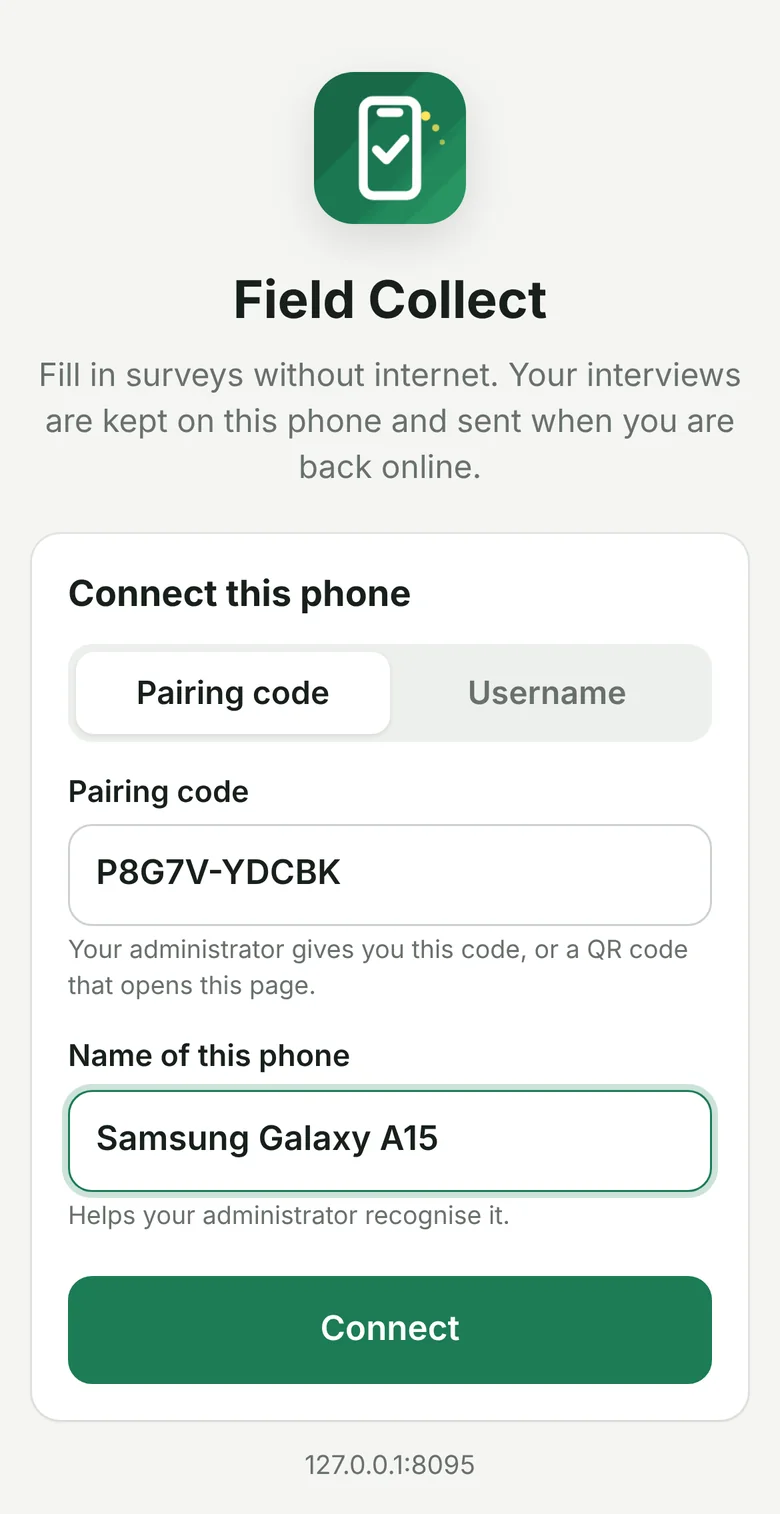
1. Connect your phone (once, with internet)
Your administrator gives you a QR code or a pairing code.
- Scan the QR code with your phone's camera and open the link. Or open the app address your administrator gave you and type the code.
- Check the Name of this phone and tap Connect.
You can also choose Username and sign in with your survey username and password, if your administrator told you to.
2. Add the app to your home screen
- Android (Chrome): tap Install app, or the menu ⋮ → Add to Home screen.
- iPhone (Safari): tap Share → Add to Home Screen. Always do this on an iPhone, so your interviews are kept safely.
From now on, open the app from its icon. It works without internet.
3. Your surveys
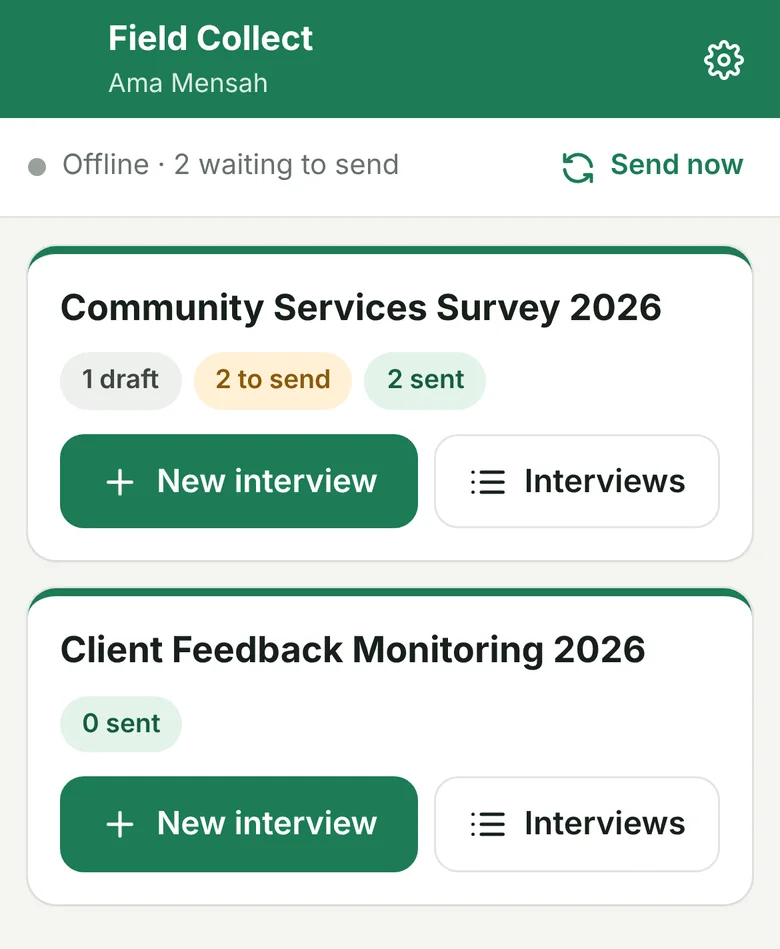
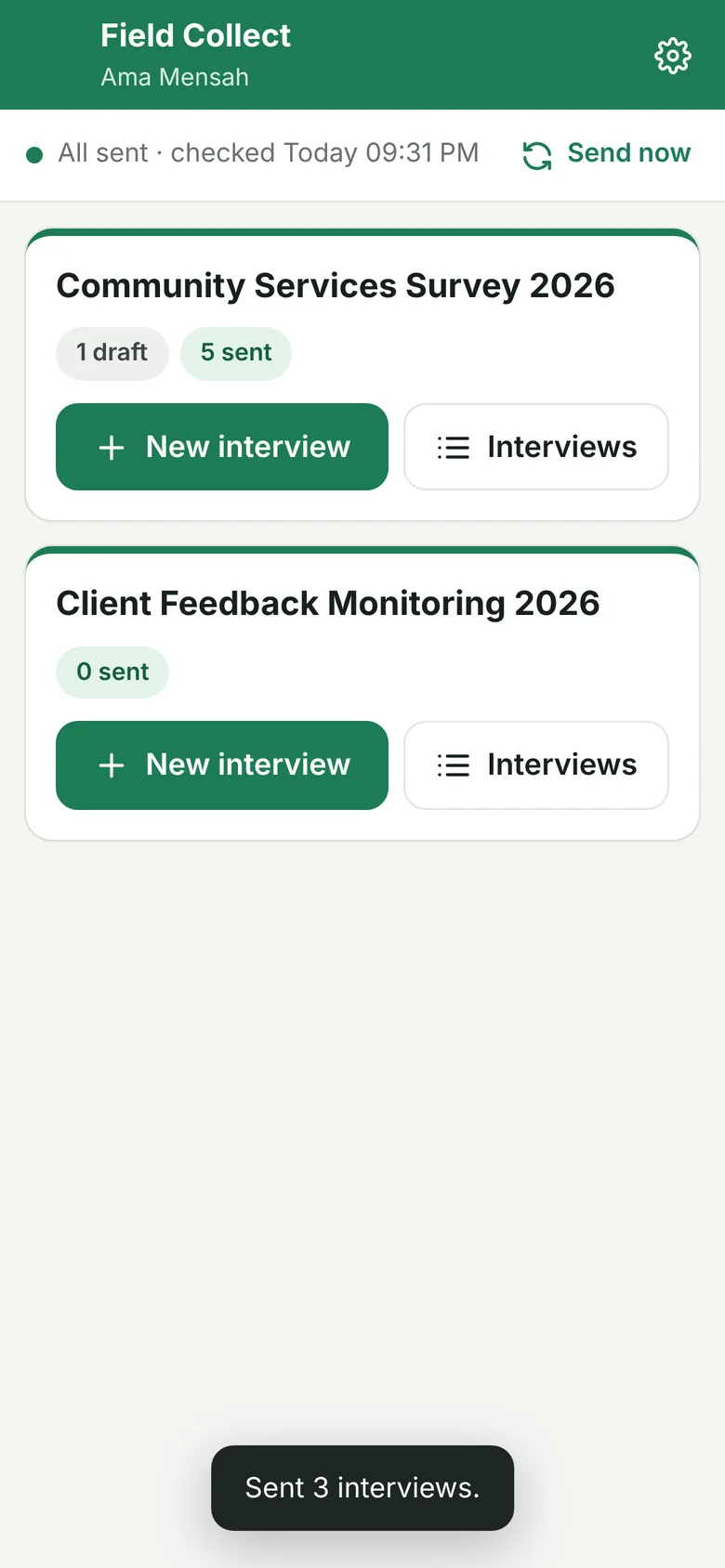
The home screen shows the surveys you collect, with your drafts, interviews to send and interviews already sent. The line at the top shows whether you are online and how many interviews are waiting.
4. Fill in an interview
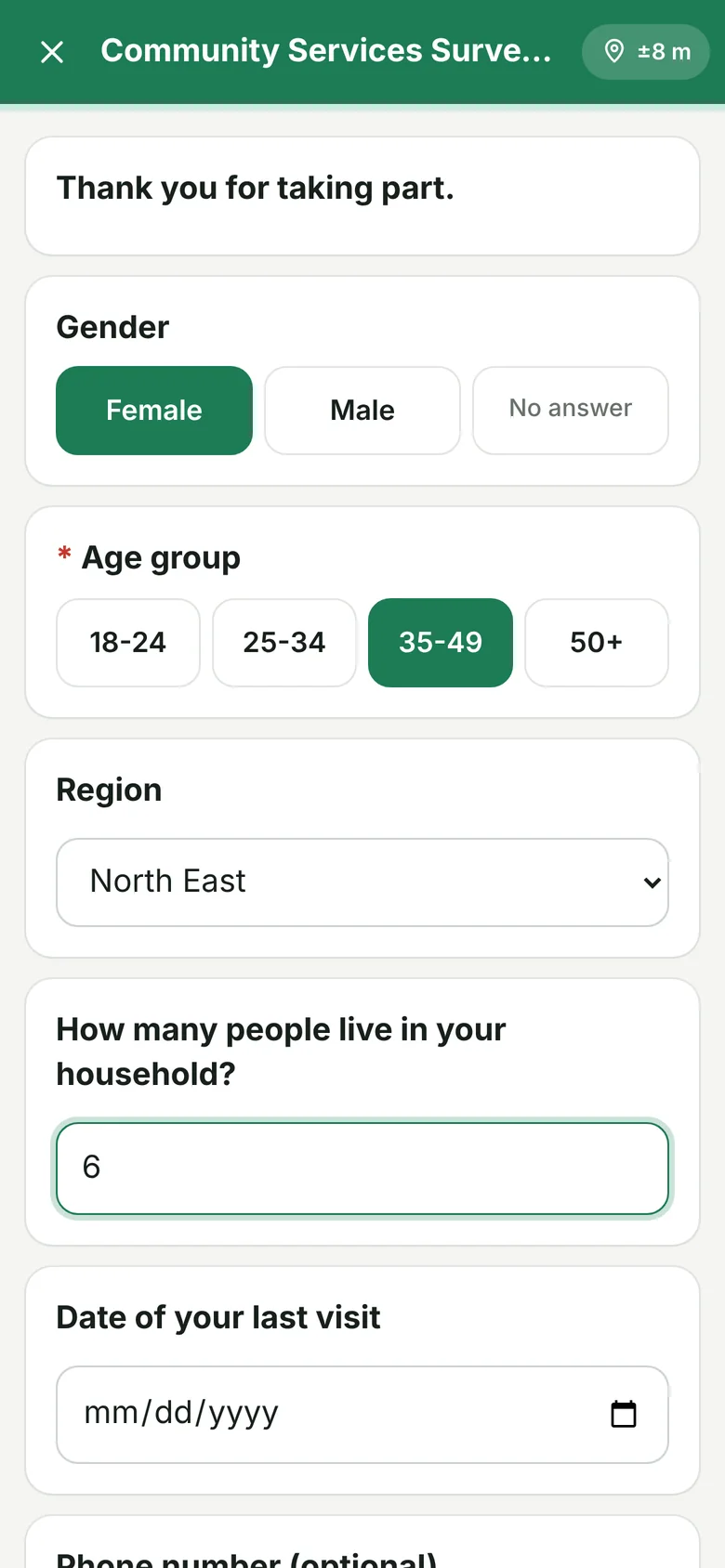
- Tap New interview under the survey.
- Answer the questions. Questions appear and disappear depending on the answers, as in the survey on the web. Required questions are marked, and the app tells you when an answer is missing or not valid.
- Use Next and Back to move between pages.
- For a photo question, tap it to take a photo with the camera.
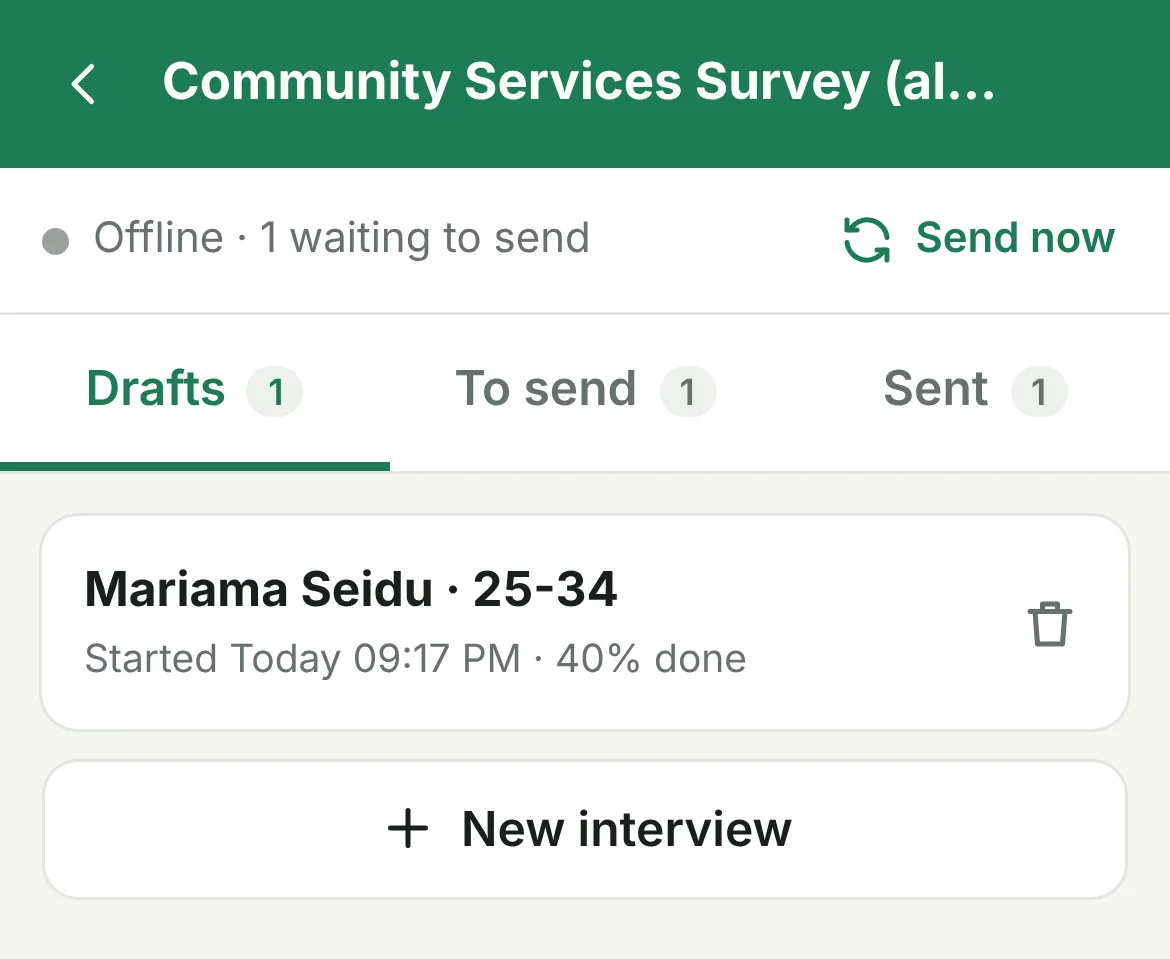
Your answers are saved as you go. If you close the app or the battery runs out, the interview is still there as a draft. Open Interviews to continue it.
5. Review and finish
At the end, the Review page shows all answers. Tap an answer to change it, then tap Finish.
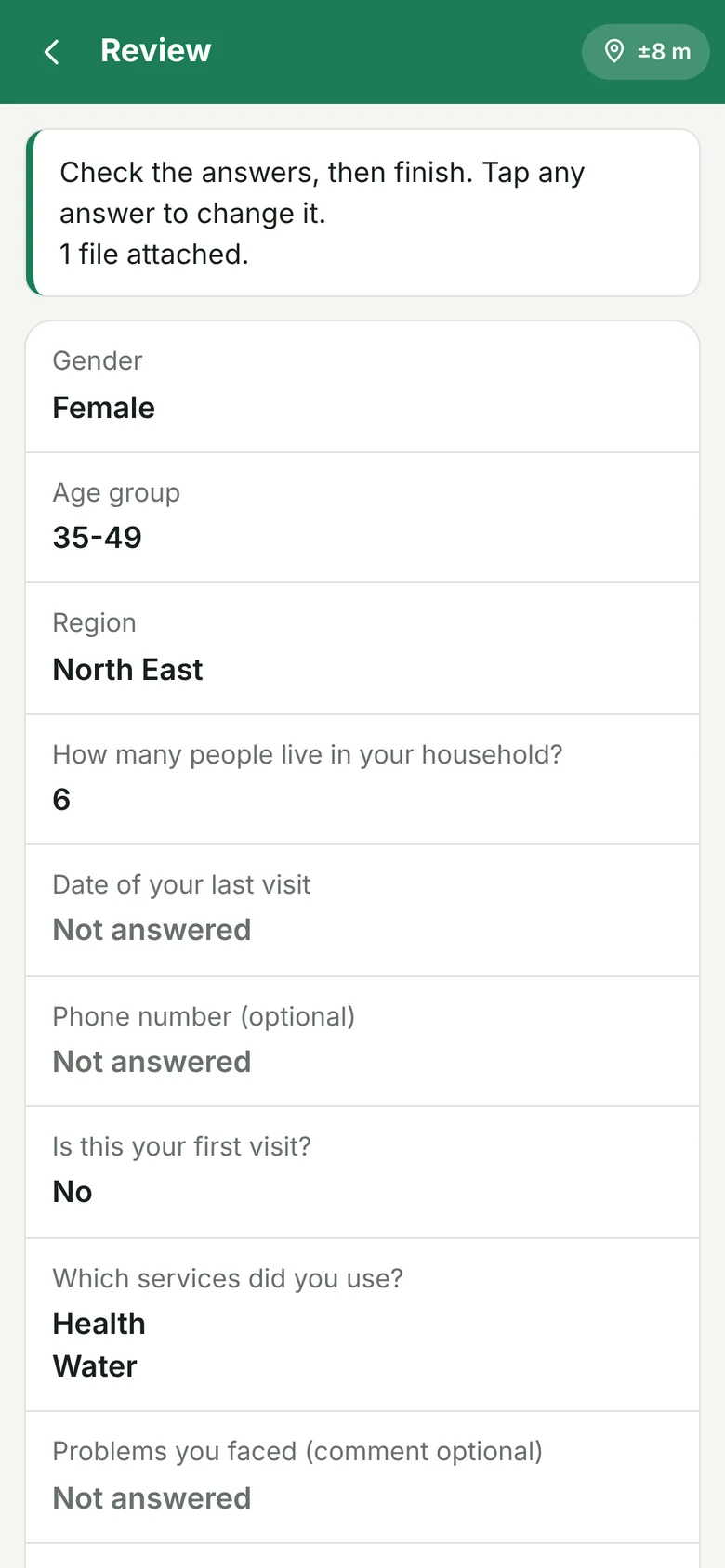
Finished interviews go to To send.
6. Sending
- With internet, finished interviews are sent automatically. You can also tap Send now.
- When everything has arrived, the top line says All sent.
- Sending is safe on a weak connection: an interview is never received twice.
7. Your interviews
Tap Interviews under a survey to see your Drafts, To send and Sent interviews. Tap a draft to continue it. The bin icon deletes a draft you do not need.
8. Settings
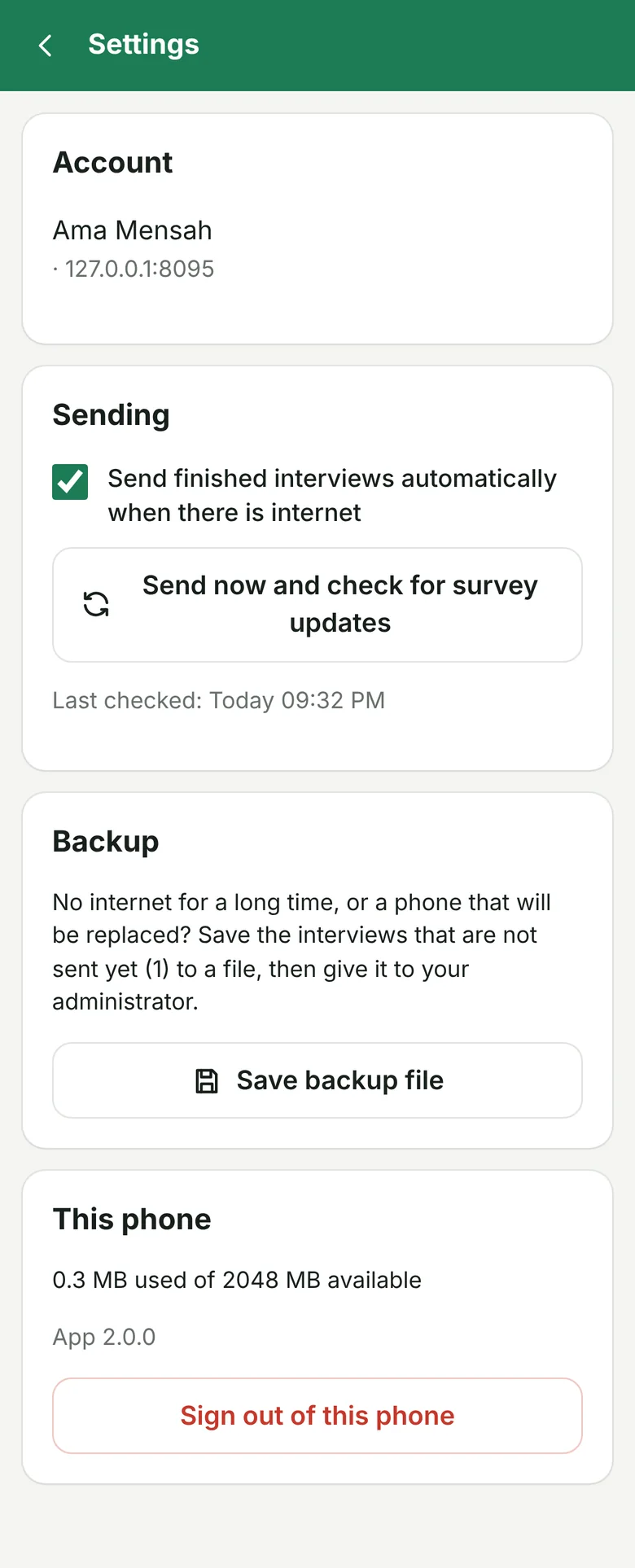
Tap the gear icon on the home screen:
- Send now and check for survey updates: do this with internet at the start of each field day, to get any changes to the survey.
- Save backup file: if you will have no internet for a long time, or your phone is being replaced, save the interviews that are not sent yet to a file and give it to your administrator.
- Sign out of this phone: only when your administrator asks you to.
Remember
- Connect to the internet at least once a week so your interviews are sent.
- Keep a screen lock on your phone.
- Never clear the browser's data or remove the app while interviews are waiting to be sent: they would be lost.
- Lost your phone? Tell your administrator at once, so they can disconnect it.