Hadar puts your own logo, colours and name on LimeSurvey: the sign-in page, the staff area and every survey page. This guide shows what each setting changes, how to give each client its own brand, and what to do when something does not look right.
Who this guide is for: LimeSurvey administrators. You need the Settings permission for the whole site (superadministrators have it).
Works with: LimeSurvey 5, 6 and 7 (Community Edition, self-hosted). The pictures in this guide come from LimeSurvey 6; the screens look much the same in 5 and 7.
1. Install and activate
- In LimeSurvey, open Configuration → Plugins → Upload & install.
- Choose the zip file you downloaded (for example
Hadar-1.0.0.zip), then click Install. - Find Hadar in the plugin list and click Activate.
- A new Branding item appears in the top bar. Click it.
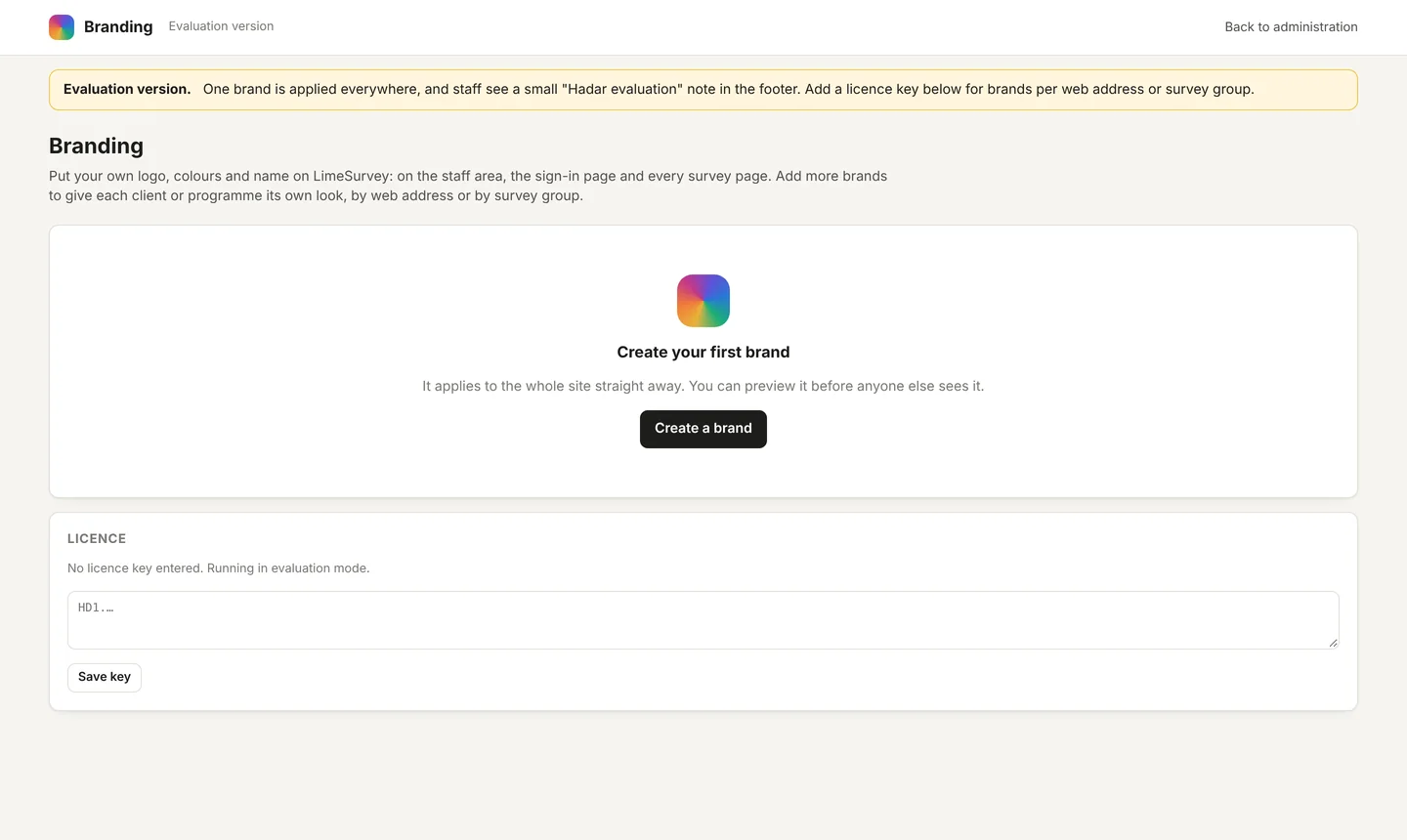
Nothing changes on your site until you create a brand and save it. Deactivating Hadar returns LimeSurvey to exactly how it looked before.
2. Create your brand
A brand is one set of logo, colours and texts. Most sites need only one: your main brand, used everywhere.
- On the Branding page, click Create a brand (later brands: + New brand).
- Fill in the sections described below. You can leave anything empty: an empty field keeps LimeSurvey's own look for that part.
- Click Save. The brand applies straight away.
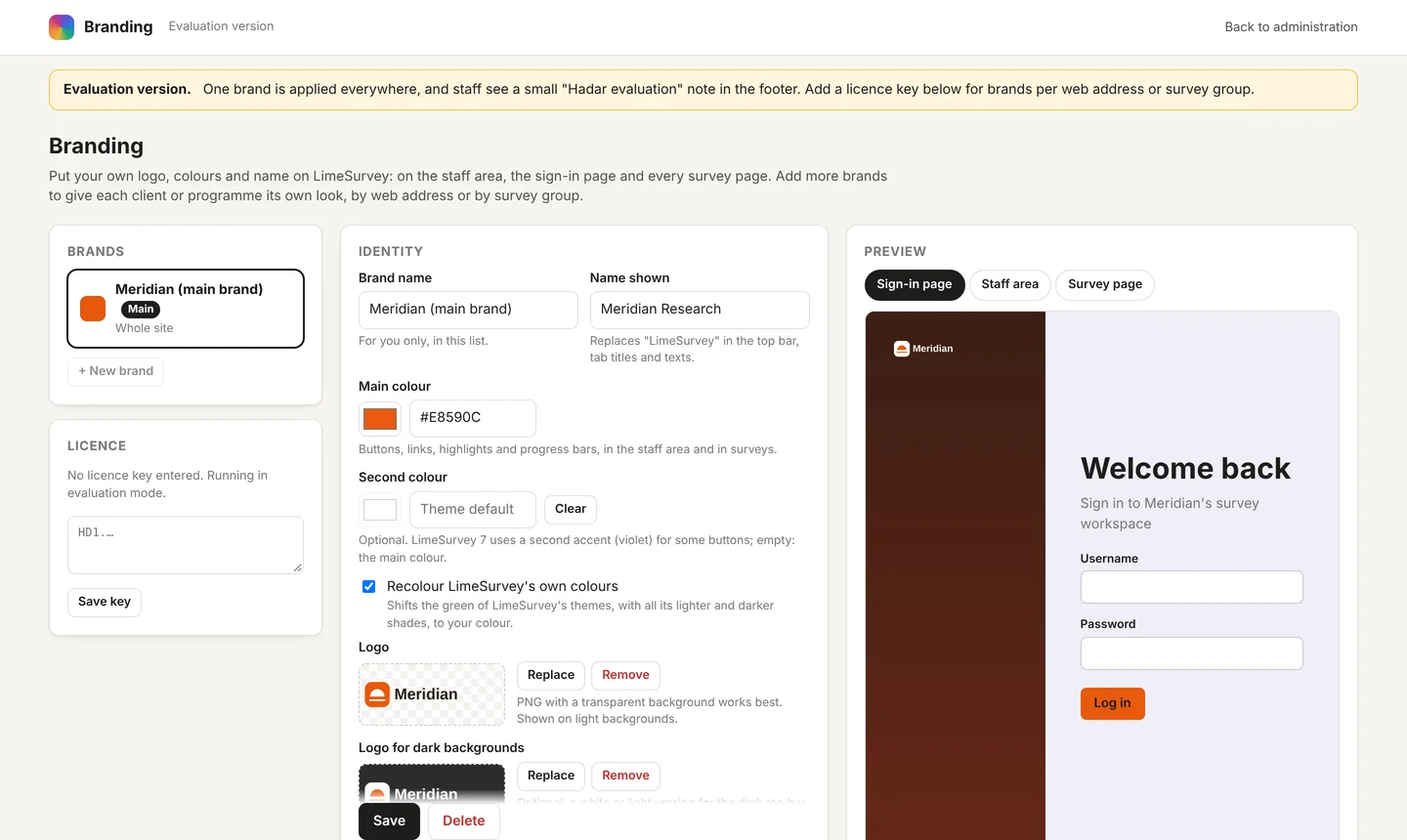
Identity
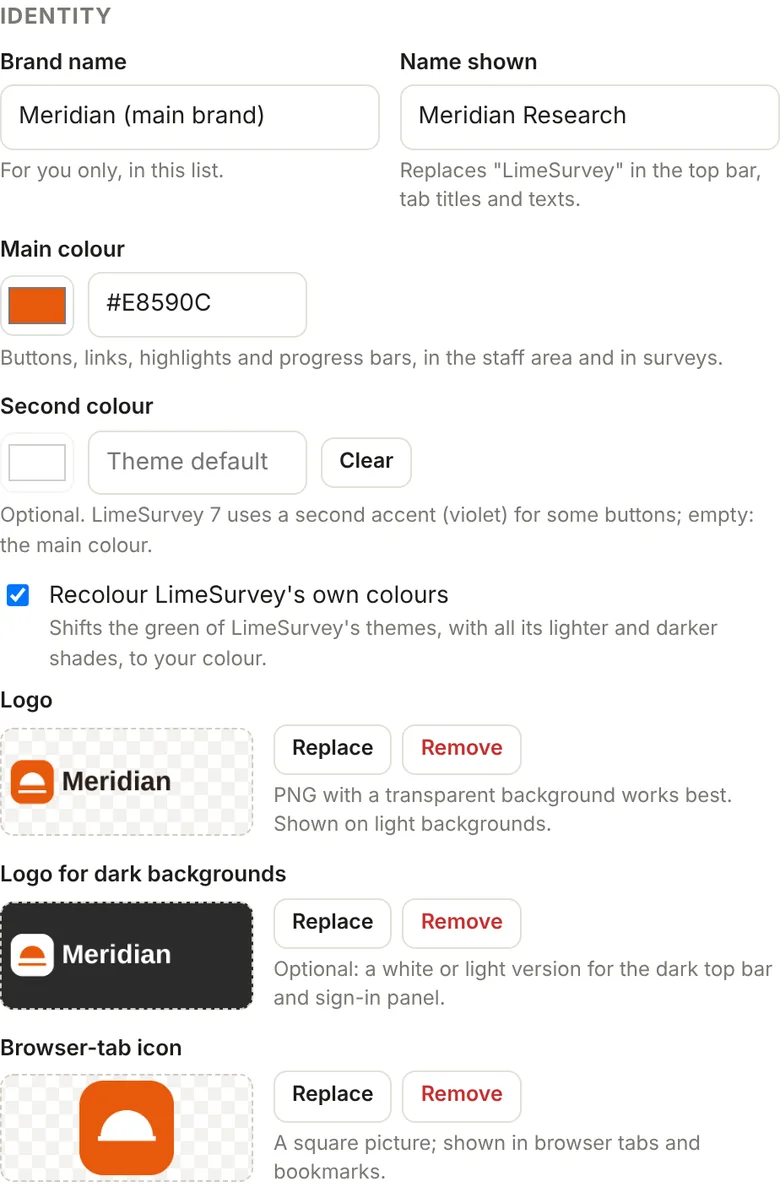
| Setting | What it changes |
|---|---|
| Brand name | Only a label for you in the list of brands. Visitors never see it. |
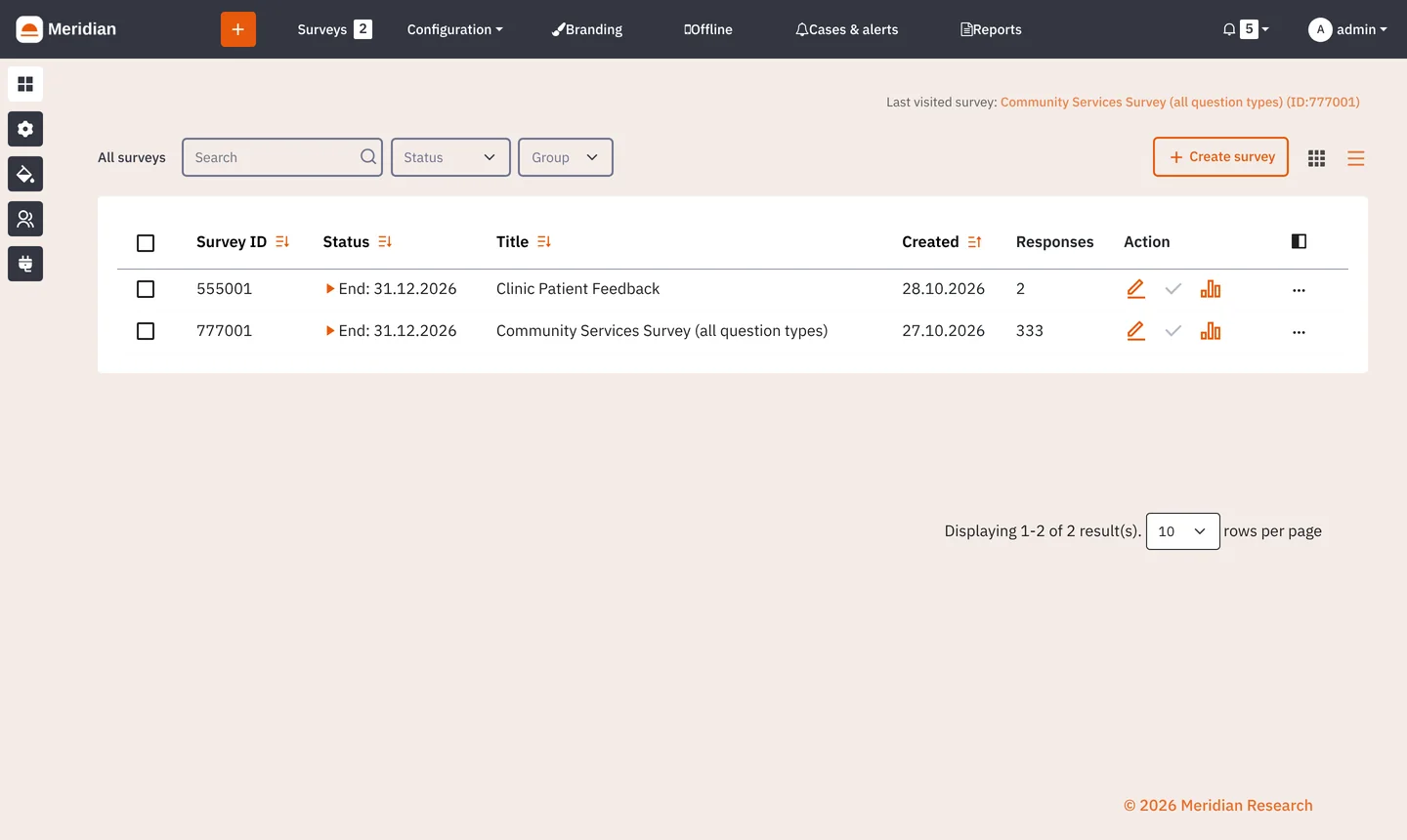
| Name shown | Replaces "LimeSurvey" in the top bar, the browser-tab title and page texts (when Replace the word "LimeSurvey" is ticked). Use your organisation's or product's name. |
| Main colour | Buttons, links, highlights and progress bars, in the staff area, on the sign-in page and in surveys. |
| Second colour | Optional. LimeSurvey 7 uses a second accent colour (violet) for some buttons. Empty: the main colour is used. |
| Recolour LimeSurvey's own colours | Changes LimeSurvey's green, with all its lighter and darker shades, to your main colour. Tick this for a complete change; without it some parts keep LimeSurvey's green. |
| Logo | Your logo for light backgrounds: survey pages and the public survey list. A PNG with a transparent background works best. |
| Logo for dark backgrounds | A white or light version of your logo, for the dark top bar of the staff area and the side panel of the sign-in page. Without it, the normal logo is used there too, which may be hard to see on a dark colour. |
| Browser-tab icon | A small square picture shown in browser tabs and bookmarks (favicon). |
Pictures can be PNG, JPEG, GIF or WebP. Hadar checks and re-saves every picture for safety; SVG files are refused.
Staff area and sign-in page
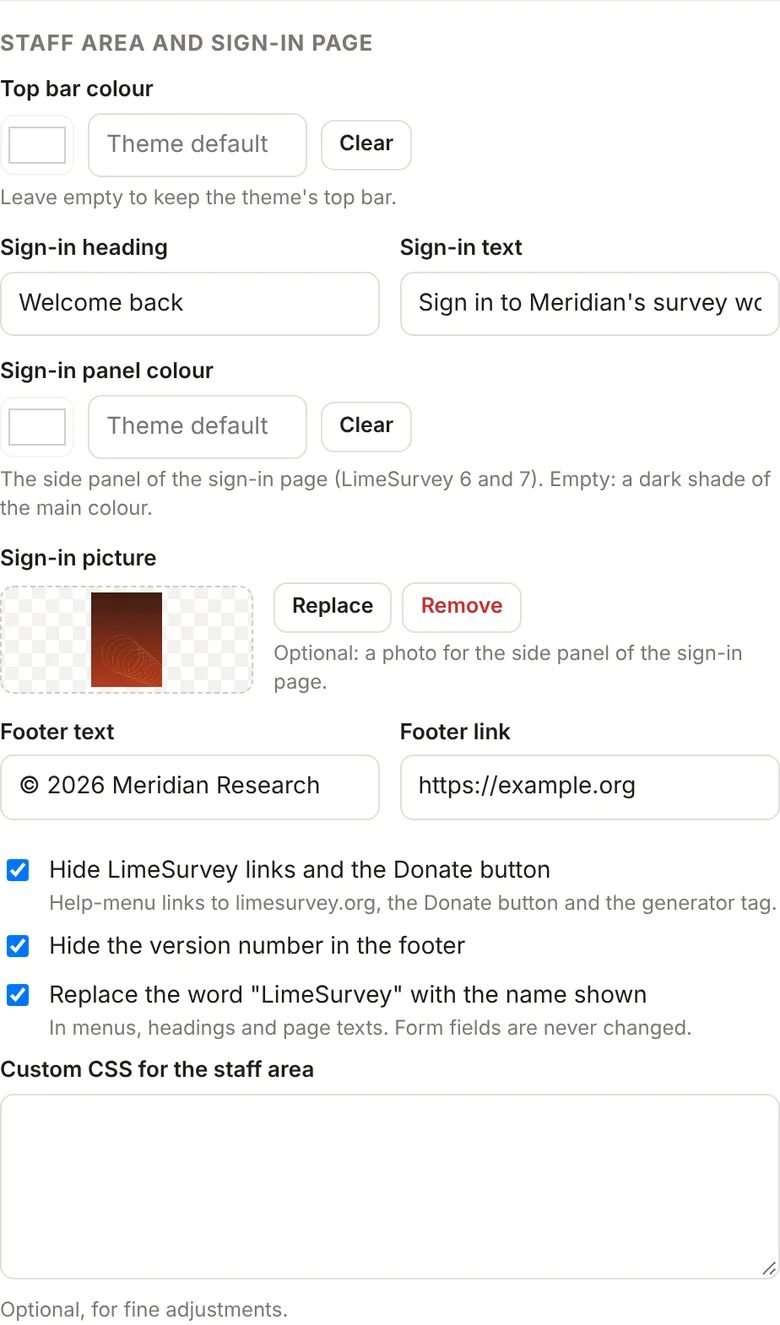
| Setting | What it changes |
|---|---|
| Top bar colour | The colour of the staff area's top bar. Empty: the theme's own top bar. |
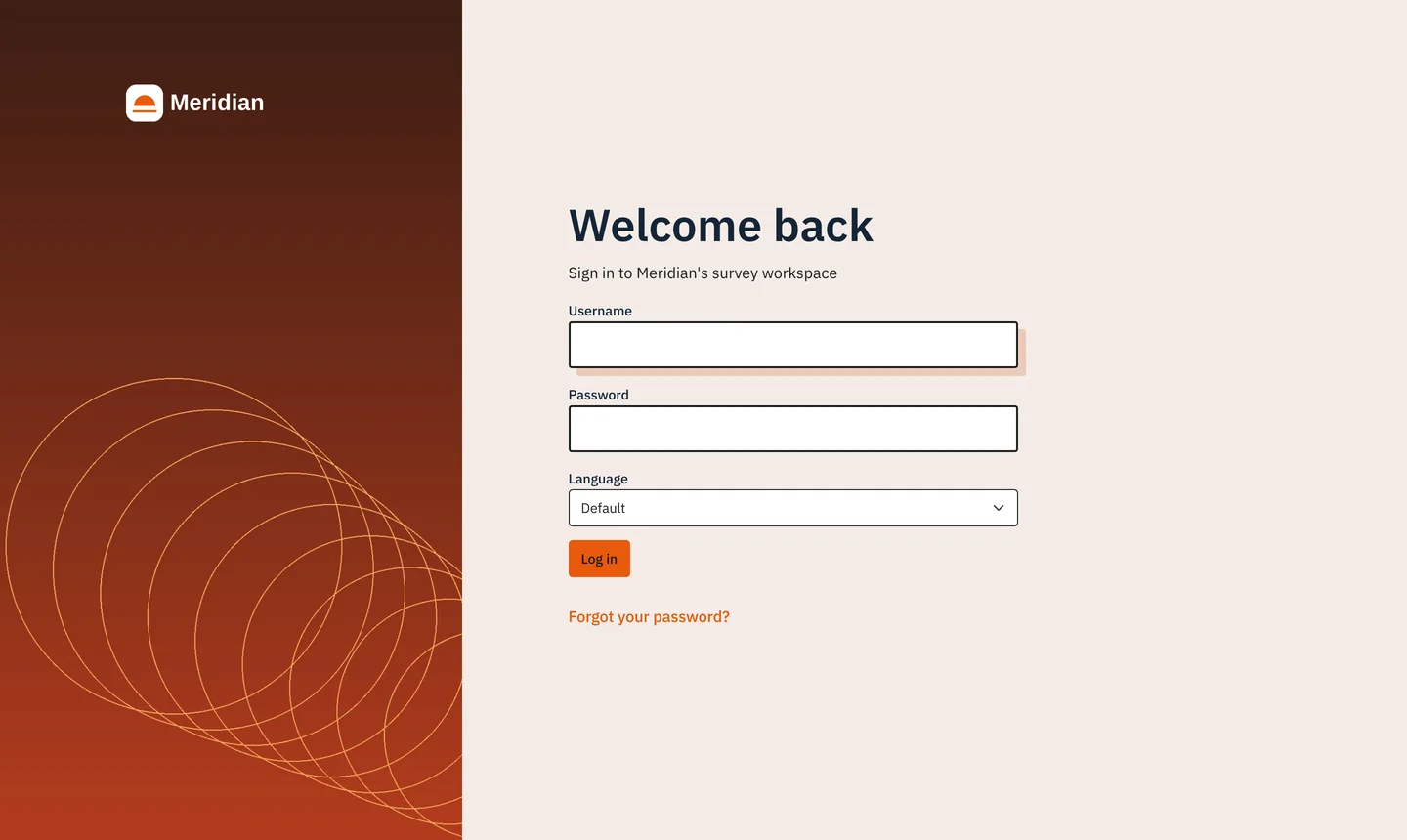
| Sign-in heading | The large heading on the sign-in page, for example Welcome back. |
| Sign-in text | The line under the heading, for example Sign in to Meridian's survey workspace. |
| Sign-in panel colour | The side panel of the sign-in page (LimeSurvey 6 and 7). Empty: a dark shade of your main colour. |
| Sign-in picture | Optional: a photo for the side panel instead of a plain colour. |
| Footer text and Footer link | Your text (and optional link) at the bottom of every staff page. |
| Hide LimeSurvey links and the Donate button | Removes the help-menu links to limesurvey.org, the Donate button and the hidden "generator" tag. |
| Hide the version number in the footer | Removes LimeSurvey's version number from the staff footer. |
| Replace the word "LimeSurvey" with the name shown | In menus, headings and texts. Form fields and your own survey texts are never changed. |
| Custom CSS for the staff area | Optional, for fine adjustments by someone who knows CSS. |
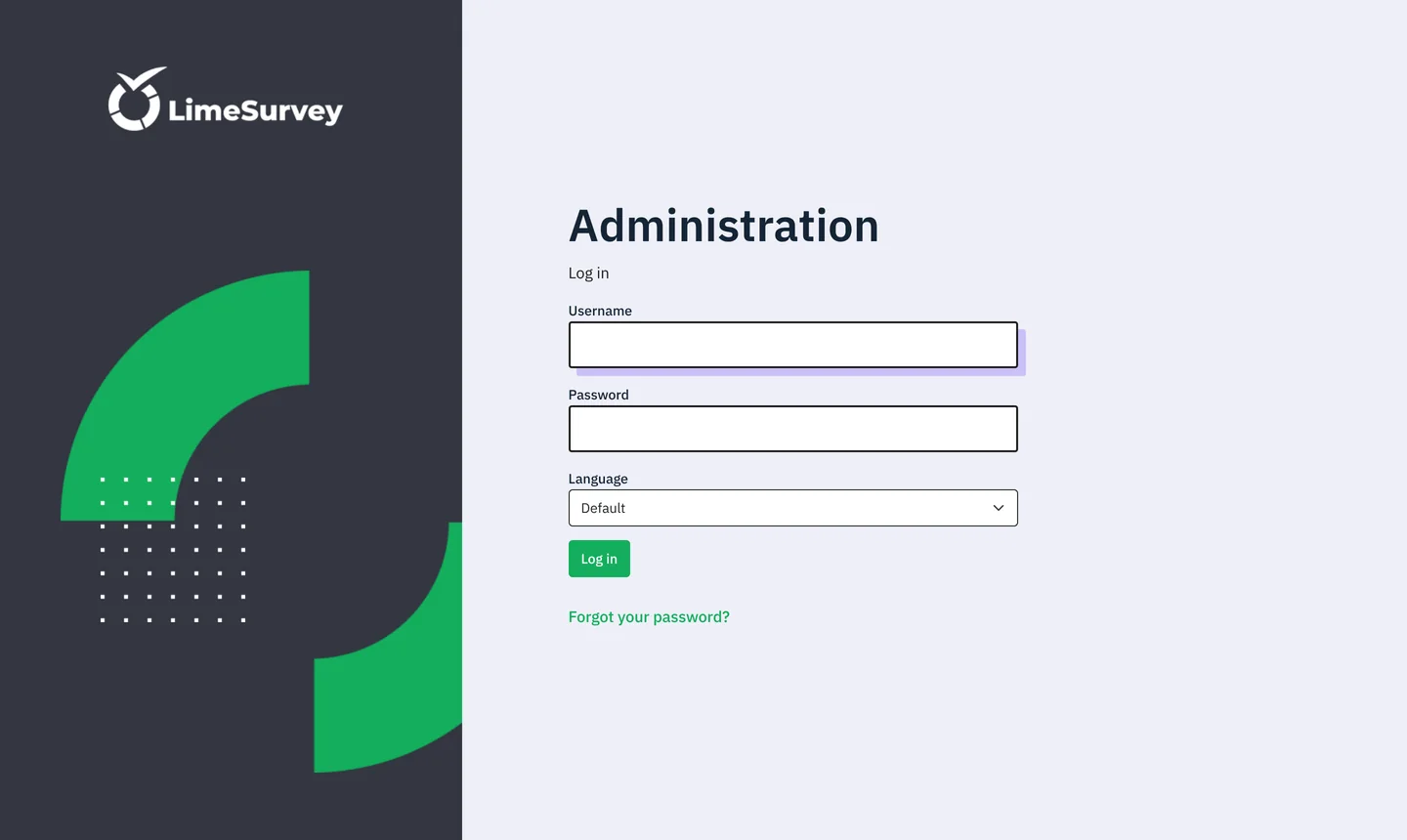
The sign-in page uses the Main colour, Logo for dark backgrounds, Sign-in heading, Sign-in text, Sign-in panel colour and Sign-in picture. If you only set a main colour, the sign-in page changes very little, so fill these in too.
Survey pages
| Setting | What it changes |
|---|---|
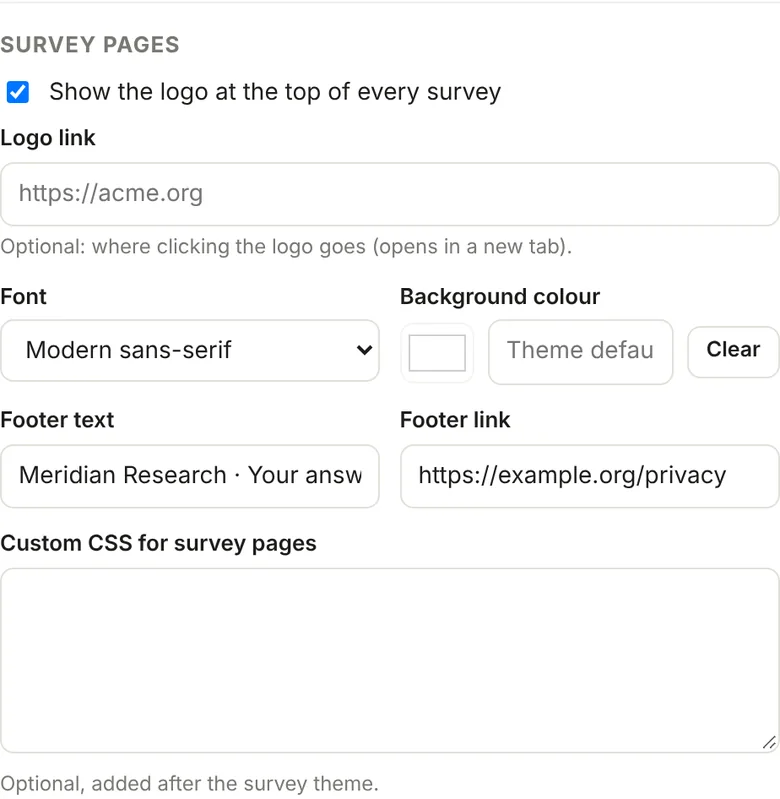
| Show the logo at the top of every survey | Puts your logo above every survey and on the public list of surveys. |
| Logo link | Optional: where clicking the logo goes, for example your website (opens in a new tab). |
| Font | The font for survey pages: Theme default, Modern sans-serif, Friendly sans-serif, Rounded or Classic serif. |
| Background colour | The page background behind your surveys. |
| Footer text and Footer link | Text at the bottom of every survey, for example Your answers are confidential, with a link to your privacy notice. |
| Custom CSS for survey pages | Optional, added after the survey theme. |
"Powered by LimeSurvey" is removed from survey pages. Your survey themes are not changed: Hadar adds its styles on top, so you can keep using any theme.
Where this brand is used
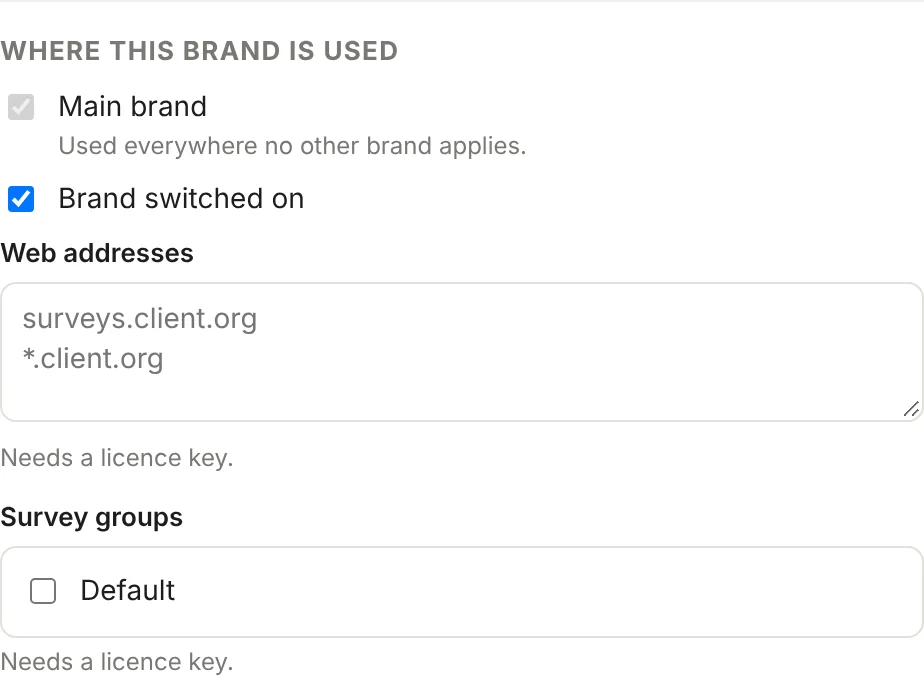
| Setting | What it means |
|---|---|
| Main brand | Used everywhere no other brand applies. Exactly one brand should be the main brand. |
| Brand switched on | Untick to stop using a brand without deleting it. |
| Web addresses | Licensed sites only: the addresses where this brand is shown (see section 4). |
| Survey groups | Licensed sites only: surveys in these groups show this brand to respondents. |
3. Check it before anyone else sees it
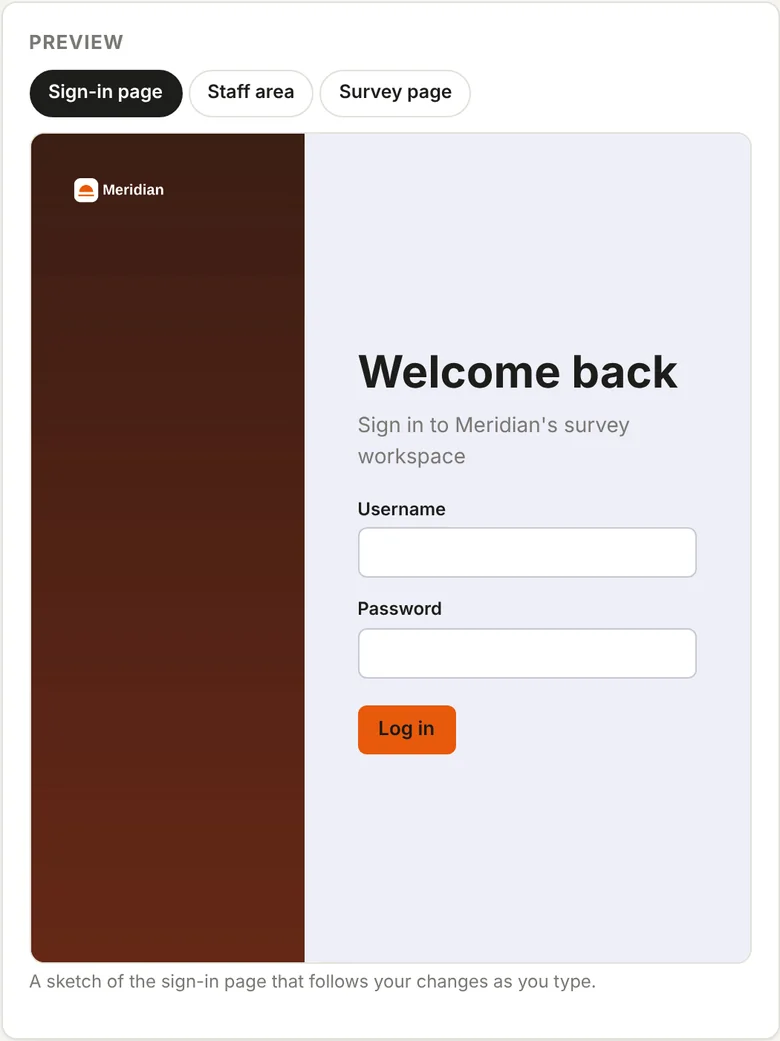
The Preview box on the right of the Branding page shows your brand without changing anything for other people:
- Sign-in page: a live sketch that changes as you type.
- Staff area and Survey page: the real pages with the saved brand applied, visible only to you. Choose a survey from the list to see it.
After saving, check the real pages too:
- Open the sign-in page in a private (incognito) window, so you see what a visitor sees and not an old copy in your browser.
- Open a survey with Preview or its public link.
4. Several brands: one per client or programme
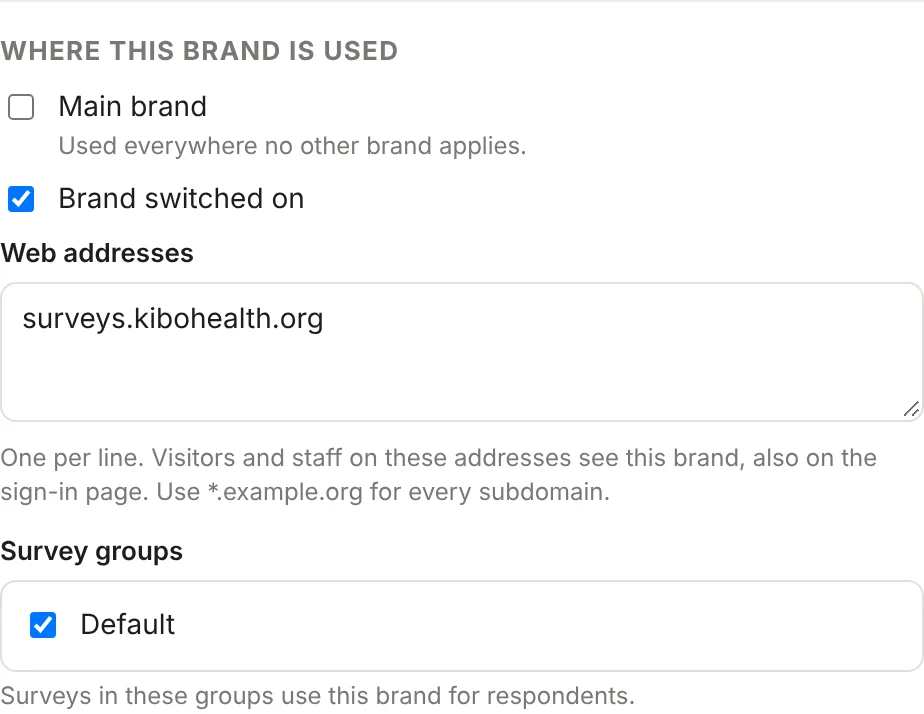
With a licence key you can create more brands, for example one per client you host LimeSurvey for. Each visitor sees one brand, chosen in this order:
- By web address. A brand whose Web addresses list contains the address in the browser, for example
surveys.kibohealth.org. Staff and respondents on that address both see it, including on the sign-in page. Use*.example.orgfor every subdomain of a domain. - By survey group. On a survey page, a brand whose Survey groups include the survey's group. This applies to respondents only.
- The main brand for everything else.
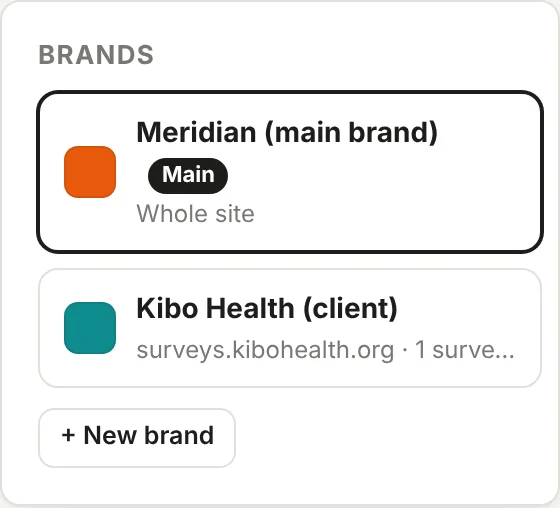
To brand by web address, the address must already lead to your LimeSurvey server (a DNS record set by whoever manages that domain) and have an HTTPS certificate. Hadar only chooses which brand to show; it does not create addresses.
5. Licence key
Without a key, Hadar runs as the evaluation version:
- one brand, applied everywhere;
- staff see a small "Hadar evaluation" note in the footer of the staff area (respondents never see it).
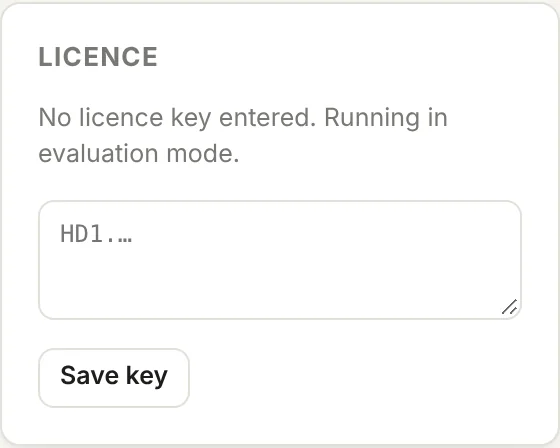
With a licence key:
- Copy the key from your purchase email or from My licences on otzarlabs.com. It starts with
HD1. - Paste it into the Licence box on the Branding page and click Save key.
- The box shows who it is licensed to and for which domain. The evaluation note disappears and you can add more brands.
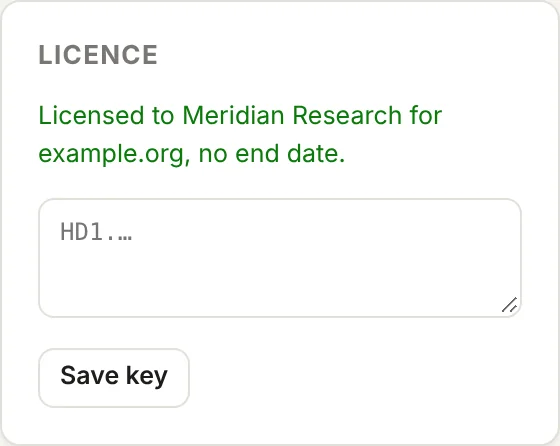
The key is for your domain and all its subdomains (a key for example.org also works on surveys.example.org). It has no end date. It also works on localhost for a test server.
6. Troubleshooting
| What you see | What to do |
|---|---|
| Surveys are branded but the sign-in page looks like LimeSurvey | Fill in the sign-in settings: Logo for dark backgrounds, Sign-in heading, Sign-in text, Sign-in panel colour. Tick Recolour LimeSurvey's own colours. Save, then open the sign-in page in a private window. |
| Some buttons are still green | Tick Recolour LimeSurvey's own colours and save. |
| Old colours after changing them, or after updating LimeSurvey | Clear LimeSurvey's cache: Configuration → Settings → Global → Clear assets cache. Then reload the page. Check that the tmp/assets folder is writable by the web server. |
| The brand is not visible at all | Check that Brand switched on is ticked and that one brand is the Main brand. Without a licence key only the main brand is used. |
| A client brand does not appear on its address | The address in Web addresses must match the browser's address exactly (or use *.domain). It needs a licence key. |
| "Licence for another domain" | The key was issued for a different domain. Write to us with the right domain and we will issue a new key. |
| The survey editor in LimeSurvey 7 still looks like LimeSurvey | Expected: LimeSurvey 7's new editor (/editor/) is a separate app that plugins cannot change. Everything else is branded. |
| Emails to respondents still look the same | Invitation and reminder emails use your survey's email templates. Edit them in each survey's settings. |
7. Good to know
- Only administrators with the global Settings permission can open the Branding page or change brands.
- Brand texts are shown as plain text, never as HTML, so a typing mistake cannot break a page.
- Pages do not slow down: the recoloured styles are made once per brand and kept.
- Nothing is sent outside your server.
- To remove all branding, untick Brand switched on or deactivate Hadar.
Need help? Write to the support address on otzarlabs.com. Please include your LimeSurvey version and a screenshot of what you see.